
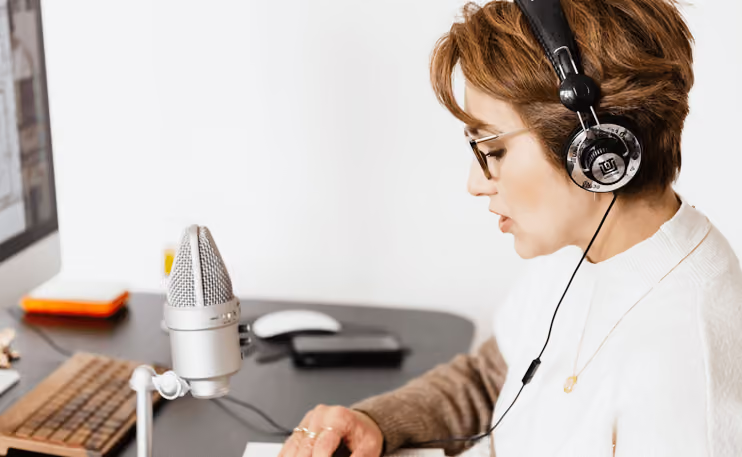
As our first article in the series describes, conference formats can be more or less well-suited for pre-recording content. This part will focus on the ways in which content can be recorded and what needs to be considered in advance.
What Should the Recordings Look Like?
Even though it may seem a bit premature and ambitious at first, having an idea of what the finished video should look like right from the start can be of great help.
Some conferences do this by having one person – think of a presenter – that introduces all the presentations that are part of a session. This can later be uploaded as a single video, whereas sometimes the presentations are available as separate videos on the conference platform.
Especially with multiple sessions and presentations, it‘s important to get the speakers on board right from the start in order to prepare them for their task. For smaller conferences with a manageable number of presentations, someone from the organizing team can make sure the presenters are ready to go, that they know how to proceed with the recording, that they are aware of the deadline to submit their recording, etc.
If the presentations or other parts of the schedule are recorded professionally in a studio, this step can of course be omitted. But if the presenters are recording themselves, providing instructions and step-by-step guides is crucial. Providers of many popular tools have already created little video tutorials you can use (e.g. GoToMeeting, Zoom, Webex).
Every now and again, there are virtual conferences with more specific requirements and whose organizers want the speakers to be visible in the picture along with their slides or they want them to hold their presentation using a customized conference background. If so, then it’s also essential to provide further assistance and explain how to do this.
What Do You Need to Consider in Terms of Technology?
Always inform speakers about technical requirements in advance. Find out which video formats can be uploaded to the conference platform first. Usually that includes all commonly used formats, but it’s always safer to make sure if there are any limitations before passing it on to the speakers.
Many apps are configured in a way so that a window pops up on the screen whenever a new email arrives or someone send a personal message to the speaker. If the screen content is being recorded for a presentation, this might be distracting. It is also better to put your phone on silent during the recording. Be careful with iPhones that are connected to a Mac on which the presentation is recorded because any incoming calls might also be displayed there. Compared to a live session, this is of course a minor issue, but may still result in having to re-record or edit at least some parts of the presentation.
Videos can get quite large depending on their format and recording quality. Set a maximum size limit that you don't want the files to exceed. If you don't want to deal with huge 4k video files, point out that a standard HD resolution of 720p is absolutely sufficient for recording a conference.
The length of a video is interesting regarding technology and content. For virtual conference formats, presentations shouldn’t last longer than 10-15 minutes. Files are then automatically smaller and, at the same time, shorter sessions promote discussions for which there is often no energy left at all after having watched multiple 30-minute presentations.
More Interaction
Even after more than a year of virtual conferences, many organizers notice that videos of presentations are viewed in large numbers but don’t spark much discussion. On-demand viewing in particular is lacking the live feeling and therefore contributes to participants quickly falling into a passive role so that much of a conference‘s character is lost as there’s no valuable exchange.
How can this be changed? A live Q&A session could be helpful if it takes place at a fixed time and complements the pre-recorded content by giving participants the opportunity to ask their questions. A live discussion can also pick up content from the pre-recorded portions of the program and provide a valuable supplement.
Recordings can also suggest a live feeling by being released on the platform according to a fixed schedule. It seems as if they’re live even if they aren’t. This has the advantage that the speakers can be present and devote their full attention to the simultaneous chat to answer the participants‘ questions directly.
The organizers of the Association for Asian Studies‘ annual conference came up with a creative idea to encourage interaction by including Hallway Conversations. They work as follows: At a non-virtual conference, participants meet in the hallway after presentations and discuss what they've just experienced. Because such spontaneous hallway conversations often generate good ideas, they should also be held in the digital space. So immediately after each pre-recorded session, a 15-minute video chat opened and a limited number of participants could join. Imagine a virtual hallway where anyone who wanted to express their thoughts on the presentation and felt the need to discuss its content could do so and easily meet like-minded people. The person limit also helps to ensure that everyone has a chance to have their say, and those interested in taking part have to hurry so as not to miss out on the opportunity.
Three Options to Record Presentations for Virtual Conferences
1. Software for Video Conferencing
If you’re using a software such as Zoom for your presentations or meetings, a built-in recording feature will help you.
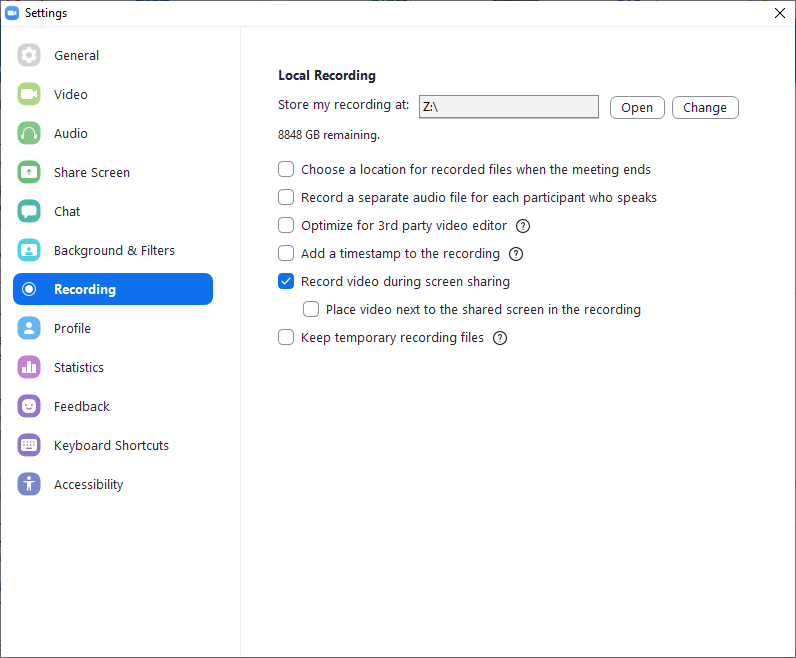
Even though this is one of the easiest ways of recording, complications can still occur because the computer has a sudden hiccup or you’re unable to open the recorded file because it’s corrupted. This can happen and then it’s alright to record the presentation a second time but this is a completely different issue when you want to record a discussion instead of a single presentation. It’s not possible to hold a discussion in the same way again. However, such tools are perfect for recording discussions. That’s why you should always make sure that everything works as planned with a test recording.
It’s best to save your recordings to a local folder. While it’s of course also possible to store them on an external drive or in the cloud (Dropbox, Google Drive, etc.), this is generally more prone to errors when converting or saving the file.
2. Presentation Software
Speakers using PowerPoint can make use of PowerPoint's own recording feature. As of the 2019 version, it is even possible to include one's own webcam into the recording so that the presenters are always visible together with their slides. Older versions can only record audio. Keep this in mind especially if you want the speakers to be visible. Keynote, the presentation software for Mac users, also allows audio recording only. If you also want to have a little box in which the speaker is visible during the presentation, the presenter needs to be a bit more technically adept. They could use a workaround by recording themselves separately and then add the finished recording to their presentation.
3. Recording Software
There are also specific recording tools for presentations such as Snagit or Camtasia which are not competing products but offered by the same provider. While Snagit is very good for simple recordings, Camtasia comes with a slightly higher price and is the better choice if you want to edit your recordings afterwards in order to add subtitles, effects, animations or annotations.
However, you can also start a recording directly in your browser. To do this, use a screen recorder tool like Screencastify. Before settling on one, be sure to look at its features as many of these tools only appear to be free software. Often this only applies to the version with a very limited functionality. For example, you should only use the free version of Screencastify if your videos aren’t longer than five minutes. Everything beyond that is only available for about 40€ per year.
A very easy-to-use, browser-based and secure alternative that’s really free of charge – regardless of video length – is Opencast Studio. You don’t need to install anything when using it. You just choose one of the three options (screen, camera or both) when it asks you what you want to record and then tell the software whether audio should be part of your recording as well. When you’re done recording, the file will be downloaded directly; nothing is stored on a third-party server.
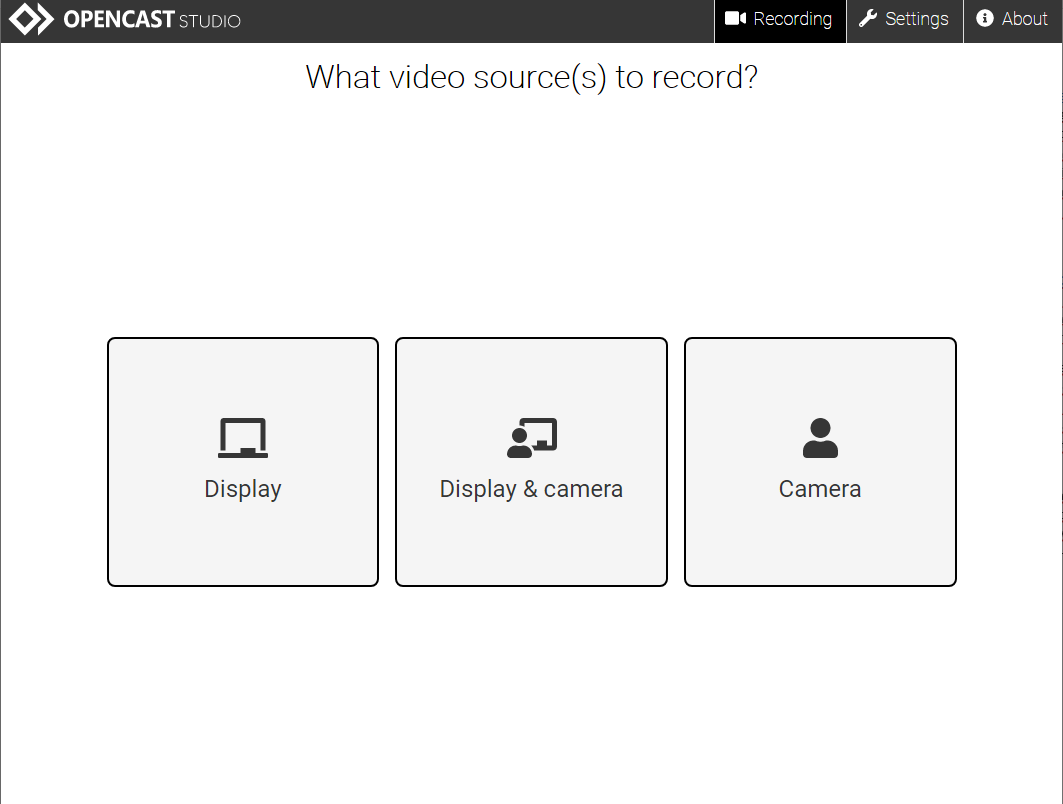
Many universities already use Opencast for online lectures and often have their own Opencast installation, that’s why many scientists are already familiar with the tool.
When recording, it is recommended to use the Chrome browser because it records the video as an MP4 file which makes it easy to edit it afterwards in case you want to do this. You can then open it with your editing software without having to convert the file to another format first.
Recording and Data Privacy
Generally, the videos created for the conference are protected by copyright just like posters or any other files provided on the virtual conference platform. By default, participants should not be able to download the videos, nor should they be allowed to make their own recordings of the sessions. If someone wants to use one of the conference videos or parts of them, they can only do so when they have the permission from the organizer or presenters.
Unlike conferences where the presentations are publicly available on YouTube or can be viewed by sharing the link, the videos uploaded to our Virtual Venue are only accessible after having registered for the conference.
Do you know any other useful recording tools? Which approach worked best for you or where do you still need assistance? Please let us know.