


As part of the event team, being glued to your phone is standard. On-site, however, this mainly adds extra chaos to a carefully timed schedule. Anyone who has ever struggled to understand the person on the other end of the line amidst the general noise knows this. And usually, you’re only talking to one person, even if the topic affects others on the team. As a result, important information reaches them with a delay—if at all. Do you sometimes miss a sense of calm at on-site conferences and see nothing but chaos?A small app helps: Slack.
What is Slack and why is the app so practical for conferences?
Slack calls itself a "messaging app". That’s not wrong, but it’s a bit of an understatement.For an on-site conference team, Slack can become the central hub.It’s where all the coordination threads come together in real time, even if the team doesn't constantly run into each other—which is standard in large conference halls.
Think of Slack as a mix between a forum and a chat. There are various channels organized by topic, which members keep active with messages and files. The conference team can discuss things directly in a channel or send private messages to one another.
At Converia, we’ve been using Slack for team communication for many years. Before that, everything that’s now in Slack was handled via email: if something needed to be clarified with someone, we had the conversation via email. If a topic concerned everyone, a mass email was sent. Today, no one would even think of not using Slack for that.
👉 A quick tip from us: Start with the free standard version of Slack, which is often enough, especially for small teams. If you need more features, you can switch to a different plan later.
What does this have to do with what happens on-site at conferences? While we don’t organize conferences ourselves, our conference management software, Converia, gives us insight into what our customers—the conference organizers—are dealing with on-site. And we were somewhat surprised to find that quite a few of them communicate with their team members exclusively via email and phone. We were less surprised to hear that not everyone is happy with that.
Slack supports the entire team throughout the conference
How a conference team interacts on-site often differs significantly from what happens the rest of the time. Our customers who organize conferences and congresses are often well-positioned digitally. Some even use project management tools to track the progress of individual conferences and assign tasks to one another.
On-site, however, a quick phone call is still often the method of choice and is disconnected from the rest of the communication.
Slack can change and simplify this. After all, the different phases belong together and share the goal of a successful conference. Our Slack hacks show you how to communicate better with your team on-site.
How conference teams can use Slack optimally - 12 quick hacks
1. Think about a structure for channels
Whether you organize conferences in a team of three or work for a large PCO: usually, one workspace in Slack is enough. All team members gather there—it’s like your own private forum.
With a new workspace, Slack automatically creates the first two channels, #general and #random. This illustrates the structure quite well: each channel covers a specific topic. In this case: #general is the place for important information that affects everyone. For everything discussed on the side that isn't work-related, #random is the right channel.
If your team organizes multiple conferences, create a separate channel for each one. If you work with a stronger focus on individual teams, each team should have its own channel.
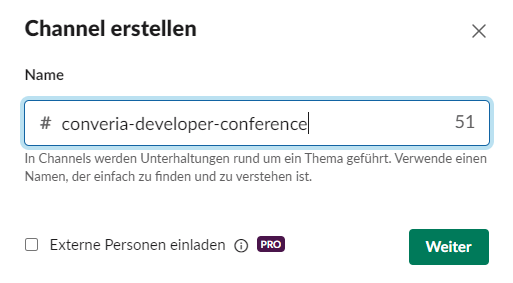
Because problems are known to arise quickly on-site and require immediate help, a channel just for emergencies is also useful. If a team member on-site doesn't know what to do, they can get quick help there. That’s better than calling someone directly—especially when it’s not clear if that person is the one with the solution.
👉 Our tip: How exactly your channel structure looks in the end is up to you. What’s important is: every channel must have a meaningful name. This is the only way to ensure that everyone understands where information belongs and that no confusion arises.
2. Manage channel access for team members
Slack channels are either public (= everyone on the team can find and join them) or private (= hand-picked members only, not visible in the channel list). You define this when creating each channel.
When creating a new channel, Slack offers you the option to invite team members directly. This is a great feature if you are organizing multiple conferences at the same time. This way, everyone planning a specific congress is immediately in the right channel and doesn't have to search through the channel list later to join.
3. Pin important information
A major disadvantage when only two people talk about things on-site that affect the whole team: important information gets lost before it reaches everyone. In Slack, messages in channels are visible to everyone. Plus, Slack has a pin feature. Channel members can pin particularly important messages to a channel to ensure they aren't forgotten.
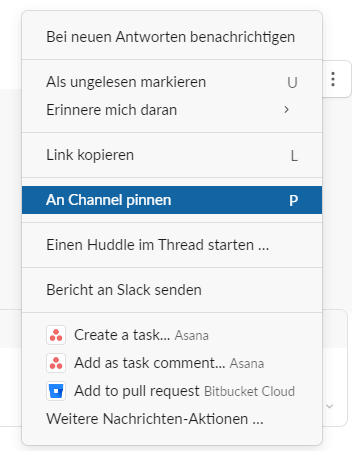
Especially at conferences, it is not uncommon for certain situations to arise repeatedly on-site. Thanks to a pin, your team is perfectly prepared.

All pinned messages appear directly under the channel name, making them quickly available.
In the free version of Slack, older messages disappear automatically after a while. Pins, however, remain visible.
👉 Pro tip: Has a pinned piece of information changed? Simply edit the pin instead of deleting and reposting it.
4. Document conference knowledge and resources
Every conference and congress is unique. As an extension to pins, Slack offers the Canvas feature. Use it to record everything worth knowing about an event. This prevents the team from having to laboriously search for or ask for information.
Everyone can collect and add to the information in the canvases together. This information can also include files, videos, or links.
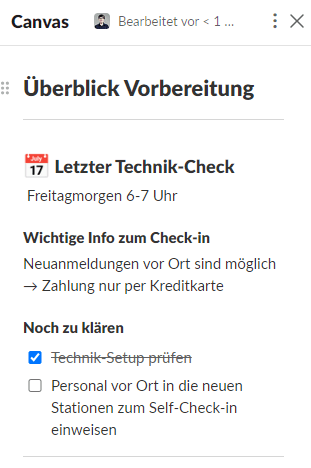
In the free version of Slack, Canvas features are slightly limited, but they are sufficient for conferences. You can create a maximum of one canvas per conversation and channel to work on with your team. This limit does not exist in the Pro version.
Don't be confused: If you open a canvas on a mobile device, you may sometimes see a message stating that you only have read access. In our tests, we were still able to add information, create new checkboxes, and check off existing ones. Minor changes are therefore no problem when you are on the go.

A canvas can be a very valuable source of information. However, if your team uses a separate tool in parallel to record such things, you should use the Canvas feature only to link to it.
👉 Never collect information about a conference in multiple places at once. After a while, no one will know which version is the most current.
5. Searching Slack
You know for a fact you read a message in Slack recently, but you just can't find it right now.
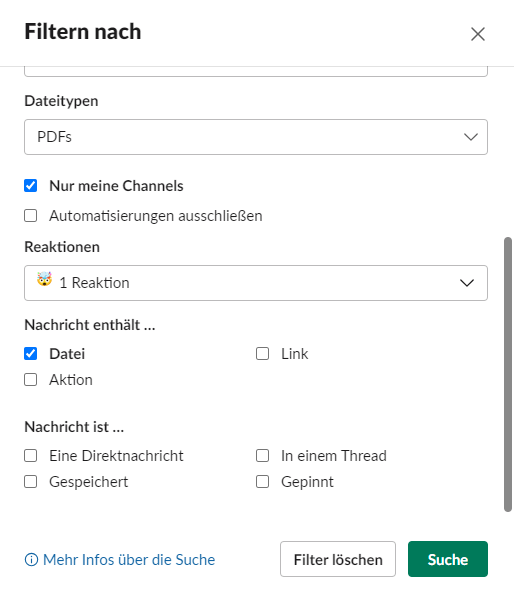
Use search filters to comb through the furthest corners of Slack and retrieve the information you need. Can you remember which channel the message was in? Or who wrote it? Or roughly when it was ("it must have been before June")? Or whether it included a link? A file? There’s a filter for everything. It even works if all you remember is that the message received a specific emoji reaction. 🤯
6. Slack reminds you of conference-related appointments
Does everyone know what to do? But do they also know when they need to tackle the task? There is a lot more going on on-site than at your desk, and things are easily forgotten as a result.
That’s not a problem if Slack is in the loop and jogs your memory at the right time.
That’s what the reminder function is for.
Slack can remind you of anything you need and even helps you set up your reminders correctly.
To set up a new reminder in Slack, start a message as follows: /remind
Then add the task you want to be reminded about and press Enter.
Slack will then automatically ask you for the details: When and how often do you want to be reminded? Set it up, and you're done.


This also works great for recurring tasks. At a three-day conference, for example, Slack can tell you every morning when it’s time to head to the check-in desk. Or you can ask Slack to remind you to drink enough water every hour.
Or you can ask Slack to remind you about a specific message. This is useful if a team member shares an interesting article that you want to read in peace during your break later.
This extended memory also works for entire channels. If the entire team on-site needs to be reminded of something at a specific time and/or on a specific day, Slack will make sure they see it. To start a reminder for the whole channel, use /remind [#ChannelName]
This way, you can tick everything off on time and soak up as many impressions as possible at the conference without the constant, nagging feeling that you’ve forgotten something.
The reminder notification arrives, but it’s not a good time? No problem. Every reminder has a snooze function, just like an alarm clock. This is very useful given the hectic pace on-site.
Once the conference is over, you obviously won't need the daily check-in reminder anymore. So: delete it. To do this, type /remind list and Slack will provide you with a list of all active reminders. Now simply select the one you no longer need and click "Delete" – that's it!
👉 Please always keep in mind: Complex to-do lists are not meant for Slack and are better handled in dedicated task management software.
7. Muting notifications
Does a tool really improve team communication if, instead of constant phone ringing every minute, push notifications are popping up on your screen?
That’s a fair point, because the more intensively conference teams use Slack, the more unread messages demand your attention. But there is a remedy: On-site (or in general), you as an organizer can configure your Slack settings to ensure you can work without distractions and only get notified about truly important matters.
Customize which messages you want to receive notifications for. For example, you can:
- mute individual channels or people
- disable all notifications for a specific period
- receive notifications only for direct messages or when someone mentions you
- set up a schedule for when you receive certain messages
Pro tip for conference organizers: Slack also allows notifications for specific keywords. Whenever the name of the congress you are currently organizing is mentioned, these notifications ensure you won't miss a thing.
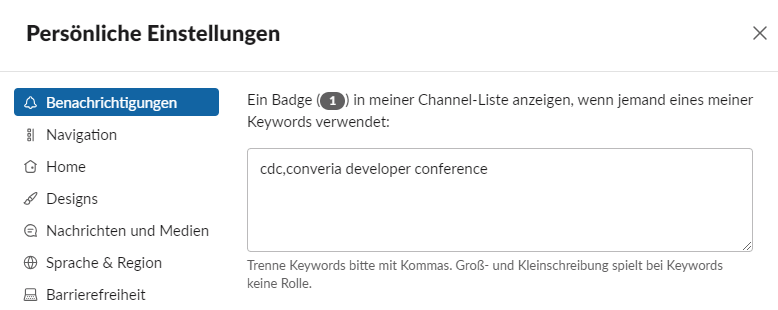
👉 Our recommendation: Turn on notifications for direct messages, mentions, and one or two of the most important channels during the conference. You can put everything else on hold.
8. Mentioning everyone
On-site, it happens from time to time that you have a specific question but don't know who can give you the answer. That’s rather inconvenient if the matter is also urgent.
Instead of calling around to find the right person, Slack has a solution for this too: Type @channel at the beginning of your message. This notifies all members of the channel to take a look.
If you only want to inform members who are currently active, use @here before your message. This way, no notifications are sent to colleagues who aren't working today.
👉 Such messages have a nice side effect: Once the information is in Slack, everyone is in the loop and doesn't need to ask again when they face the exact same problem two days later.
9. Private messages and video calls
If you already know who to ask, send that person or group a private message. Use the command /msg to start one from any channel. This is a quick way to connect with one or more people.
It doesn't necessarily have to be in writing. If you need to be even faster, start a Huddle. This is an audio or video call with another person on the team or a group.
10. Conducting quick polls with emojis
Slack can be extended with various apps whose functions can be used directly within Slack. For example, you can conduct polls in Slack. However, sometimes you don't even need to connect a special polling app to survey your team.
It’s much easier: You ask a question and add multiple emoji reactions, such as a thumbs up and a thumbs down. Everyone else on the team votes by tapping one of the two emojis, and you have the result immediately.

11. Threads for better conversation clarity
Channels provide structure, but they don't automatically prevent a lack of organization within them. If one team member posts a message about badge distribution and another follows up shortly after with something about tracking training credits, you already have two distinct topics that the next person might reply to. If this continues, it leads to chaos. No one will know which messages belong together anymore.
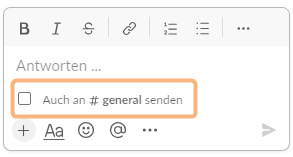
As soon as someone on the team replies to an earlier message, they should start a thread under that message. Threads group messages belonging to the same topic together. To see the full conversation, simply expand the replies under the original message. And don't forget: if there's crucial information in there, please pin it.
👉 Our advice: Slack conversations work best when everyone, without exception, uses threads to reply to a message. If a reply concerns other people in the channel, Slack offers the option to send the reply to the entire channel simultaneously while writing it. This ensures it remains prominently visible outside the thread as well.
12. Regular cleanup
The channel structure in Slack is practical, and new channels are created quickly. While that's great, it also carries a risk: the number of channels grows to the point where no one can keep track anymore.
If your team organizes many conferences, it’s rarely helpful to keep every conference channel forever. Take some time at least once a year to give your channels a spring cleaning. Take a look at the pinned messages: How much time has passed since the last one? Are the pinned details still relevant for other conferences? If so, either pin them in #general or another general channel, or move them to a different system where you keep important information.
Once that’s done, you can rest easy and delete the channel.
For those who aren't quite ready to commit to permanent deletion, there is this feature:

👉 If you're still having doubts: archive the channel first. It will no longer be active, but in an emergency, the message history is still there.
BUT: Be careful when sharing data via Slack!
Slack has countless integrations that extend the tool's functionality. Ultimately, there is very little that cannot be implemented in some way using Slack.
For a conference, it’s even possible to have a message automatically appear in Slack when someone registers or successfully checks in on-site. Or the entire list of participants could end up as a file in a congress Canvas.
Just because something is technically possible doesn't mean it's legally acceptable. Because you are dealing with sensitive personal data, it is better to act with caution here. Personal participant data has no place in Slack.
It doesn't matter if the information is only shared in a private channel, because ultimately, the data ends up on servers outside of your control.
If you keep this in mind, you and your team will organize conferences and congresses with Slack that are characterized by a pleasant, relaxed atmosphere on-site.
And perhaps in a few months, you’ll remember how cumbersome the constant phone ringing used to be and how much calmer things have been since—even with last-minute requests.
If the team on-site is relaxed, that energy carries over to the conference.
1. Long queues cause double the stress—for both attendees and organizers. With the right technology, they won't form at all.
2. Fewer cancellations are also good for your peace of mind. Find out how to reduce your cancellation rate here.