

🕶️ At a glance
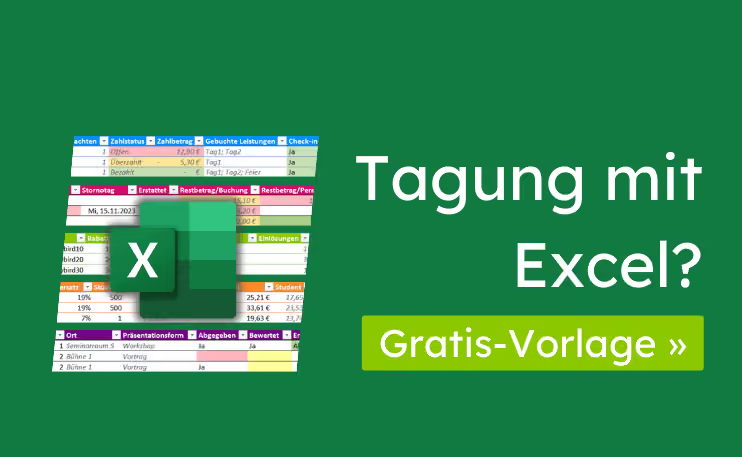
- This free Excel template handles three key tasks for your conference preparation: attendee management, payment management, and abstract management (paper management).
- However, you will still have to do a lot of work manually: data entry, check-in, cancellations, anonymizing abstracts, keeping data synchronized between stakeholders, and much more.
- Pro tip: Before your conference falls victim to "Excel cell death," consider switching to specialized conference software.
Sie planen eine Tagung. Mit Excel. Zumindest liebäugeln Sie damit. Wie bitte? Sie sind weder Formelfuchs noch beherrschen Sie Zellteilung? Wie viele Tage würden Sie im Tabellenblätterwald überleben?! Besser: Machen Sie sich keine Gedanken um Formelfehler und falsche Zellbezüge! Wie? Tada! 🎉 Setzen Sie für Ihre Tagungsplanung auf eine robuste Excel-Lösung:
Wie verwalten Sie Daten der Teilnehmer, Zahlungen und Abstracts damit erfolgreich? Und wo droht Ihrer Tagung der Excel-Zelltod? Bedienungsanleitung und Praxistipps für die Tagungsorganisation mit Excel folgen unterhalb.
🎬 Prefer a video tutorial?
Discover the Excel template for conference planning in a convenient video format. In just over 20 minutes, you will get to know all the worksheets and learn the best way to enter your attendee data. However, the real pro tips for the Excel tool can only be found here on the blog.
Videodemo der Excel-Vorlage für Ihre Tagungsplanung. Alle Tabellenblätter im Praxistest und Grenzen.
Mehr als eine Teilnehmerliste in Excel: Diese 3 Aufgaben löst die Vorlage
Mit dem Eventplanungs-Tool erstellen Sie nicht nur Teilnehmerlisten in Excel. Sie lösen elegant drei Aufgaben Ihres Tagungsmanagements in vertrauter Bürosoftware: Die Verwaltung der Teilnehmer, Zahlungen und Beiträge (Abstracts, Paper). Das macht die Tabellenvorlage zur Ergänzung Ihrer Planungs-Checklisten. Aber der Reihe nach:
Teilnehmermanagement
Im Tabellenblatt Personen + Check-in hinterlegen Sie Angaben und Preisgruppe involvierter Personen. Für den Check-in sehen Sie auf einen Blick: Haben Ihre Teilnehmer die Leistung gebucht? Und auch bezahlt?
Jede Person hat in der Spalte ID eine eindeutige Nummer. So verweisen Sie auch in anderen Tabellenblättern auf dieselbe Person. Praktisch, wenn eine Person zugleich Teilnehmer, Einreicher und Gutachter ist! Hinzu kommen Spalten für Angaben zu Personen: Name, Vorname, Anmeldename (z. B. vom Teilnehmerbereich Ihrer Website), E-Mail-Adresse, Organisation, Straße, PLZ und Ort.

In der Spalte Gruppe weisen Sie jeder Person die zutreffende Preisgruppe zu. Wie viele Beiträge Ihre Tagungsteilnehmer einreichten, verrät Ihnen die Spalte Beiträge. Wie fair haben Sie die Begutachtung dieser Beiträge verteilt? Das prüfen Sie anhand der Anzahl zugewiesener Gutachten in der Spalte Gutachten. Die Spalten Zahlstatus und Gebuchte Leistungen füllt Ihnen die Vorlage von selbst auf. Sie nutzt dafür die aktuellen Werte aus den übrigen Tabellenblättern. In den Spalten Check-in Tag1 usw. dokumentieren Sie den Einlass eines Teilnehmers mit Ja. Diese Check-in-Spalten entsprechen dem Leistungsangebot im Blatt Leistungen.

💡️ Did you know? How to pronounce "Excel" like a native speaker
In German-speaking regions, Excel is often pronounced ['äck-säll]. Elsewhere, the native English pronunciation [ix-'säll] is standard, with the stress on the second syllable—just like the verb "to excel."
Zahlungsmanagement
Im Blatt Buchungen sammeln Sie gebuchte Leistungen und Zahlungen Ihrer Teilnehmer.
In der Spalte Person-ID landet die ID der Person aus dem Blatt Personen + Check-in, die Ihre Leistungen gebucht hat. Was Ihre Tagungsteilnehmer buchten, steht in der der Spalte Buchung. Wie oft Sie die Leistungen noch verkaufen können, überprüfen Sie mit der Spalte Verfügbarkeit. Die weiß es aus erster Hand: Von der gleichnamigen Spalte im Blatt Leistungen. Für das Datum der Buchung ist in der Spalte Buchungstag Platz, für eingelöste Gutscheine in der Spalte Gutscheincode. Welche Gutscheine Sie hier sehen, hängt von Ihren Einträgen im Blatt Gutscheine ab.

Ebenso, wie viel Rabatt Sie dafür geben. Fehlt noch der Bruttopreis: Die Vorlage weiß, in welche Gruppe Sie Ihre Teilnehmer einteilten. Und schlägt den zugehörigen Nettopreis im Blatt Leistungen nach. Auf den ermäßigten Nettopreis in der Spalte Rabattiert schlägt die Vorlage den Umsatzsteuersatz der gebuchten Leistung auf. Et voilà: Der Bruttopreis. Dann kann Ihre Kasse ja jetzt klingeln!
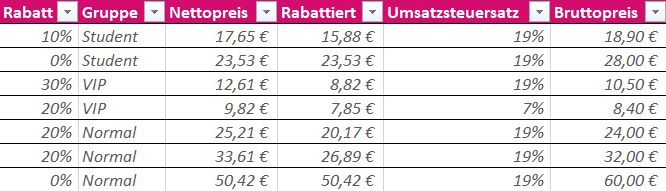
Was Ihre Teilnehmer bezahlten, vermerken Sie in der Spalte Bezahlt. Den Fehlbetrag sehen Sie rot in der Spalte Restbetrag/Buchung. Die Buchung ist für Sie erledigt, wenn der Restbetrag/Person auf null Euro schrumpft und der Zahlstatus von Offen zu Bezahlt wechselt.
Wenn Ihre Teilnehmer nicht stornieren würden. Wie hilft Ihnen die Vorlage dabei weiter? Stornierte Buchungen erkennen Sie am roten Ja in der Spalte Storniert. Über der Spalte steht Ihre Stornogebühr in Prozent. Sobald Sie eine Buchung als storniert kennzeichnen, ist nur noch der prozentuale Anteil des Bruttopreises fällig. Haben Ihre Teilnehmer rückblickend zu viel bezahlt, wird der Restbetrag/Buchung negativ, der Zahlstatus wechselt zu Überzahlt. Den Erstattungsbetrag vermerken Sie in der Spalte Erstattet. Entsprechend gehen Sie bei nachträglich gewährten Gutscheinen vor, die den Nettopreis verringern.

💡️ Better fully booked than booed!
For the Services and Bookings sheets, the following applies: Once you have sold the last day ticket, the status in the Availability column changes from Available to Fully Booked in a pleasant green. Congratulations on your sales success! If, however, you have sold more than you have in stock, the cell turns red and displays Overbooked. Boo! Now it's time to resolve the mishap quickly. Surely your attendees will be understanding!

Regarding vouchers: You set these up in the Vouchers sheet. The key elements are unique character strings in the Code column and the percentage discount. The Description is for your own notes. If you are interested in how often your participants have used a voucher, you can find this in the Redemptions column.

You manage your service offerings in the Services sheet. For each service, add the valid VAT rates from above the table in the VAT rate column. Also, specify how many units you are offering. The template handles the rest: In the Remaining column, you can see how many units of a service are still available for sale—after deducting booked but not cancelled services, of course. You can also see the availability, color-coded just like in the Bookings sheet.

Enter your carefully calculated net prices for the conference tickets in the Normal column. If you offer price concessions to certain participants, the template includes columns for discounted group prices, such as the Student and VIP price groups. The percentage group discounts are listed above the price groups. As a reminder: you assign the group to your participants in the People + Check-in sheet. In the Bookings sheet, the template automatically selects the correct net price for you.

Abstract management
You can oversee the submission and evaluation of abstracts in the Contributions sheet. The Title column is for the name of each contribution. Assign each contribution to a session by entering the correct ID in the Session ID column. Do the same for topics in the Topic ID column. Great preparation for your program planning!

The template provides information on the location and presentation format of each contribution using data from the Sessions sheet. You can document whether your authors and reviewers have completed their tasks by entering Yes in the Submitted and Evaluated columns.
Are your authors and reviewers at risk of missing your deadlines? Specifically, the submission deadline and evaluation deadline located above the Submitted column? The template marks expiring deadlines in yellow, then red. It calculates this based on the number of days between today and your deadlines. You can control the lead time in days using the color-coded Remaining days: fields, etc., located above the Evaluated column.
Has the program committee made a decision? Enter the result in the Result column. Accepted contributions appear in green as Accepted, while rejected ones appear in red as Rejected. Which person in the People + Check-in sheet is the author, and which is the reviewer? The IDs in the Submitter ID and Reviewer ID columns will tell you.

💡️ Person searcher, stick to your sheets
On the right side of the Contributions sheet, you will see helpful information about individuals you previously assigned as submitters or reviewers. You can find similar information in the Bookings sheet. Scroll sideways to find it instead of laboriously searching for people in the People + Check-in sheet.

The Sessions worksheet is the place for all sessions you want to include in your conference program. This includes the Name, Location, and Presentation format. In the Contributions column, you can see which contributions you have assigned to each session so far.

Im kleinsten und letzten Blatt Themen listen Sie Themen auf, nach denen Sie die Beiträge gruppieren wollen. Hilfreich, wenn Sie Ihr Tagungsprogramm planen. Dafür sind Name des Themas und eine Aufzählung der bis dahin zugeordneten Beiträge vorgesehen.

Los gehts: So geben Sie Daten richtig in die Excel-Vorlage ein
Bereit für einen Praxistest? Ergänzen Sie Tagungsdaten in allen Blättern. Schritt für Schritt:
- Step 1: Register
Susanne Steinbeisas a person in thePeople + Check-insheet. She is a colleague of Malte Warstein and is booking at the standard rate. - Step 2: Create the service
Day3in theServicessheet. - Step 3: Add a check-in column named
People + Check-incalledCheck-in Day3. - Step 4: Expand the
Voucherssheet to include the voucher codeearlybird50for a 50 percent discount. - Step 5: Ms. Steinbeis means business: Enter four bookings for Susanne Steinbeis in the
Bookingssheet:Day1,Day2,Day3, andConference Proceedings. Sell her the proceedings at half price (hint: use a voucher!). - Step 6: Note that Ms. Steinbeis has paid her invoice amount.
- Step 7: Ms. Steinbeis cancels her conference proceedings and her ticket for Day 1. Typical. Mark Ms. Steinbeis' bookings accordingly.
- Step 8: Refund the overpaid amount to her.
- Step 9: Back in the
People + Check-insheet, welcome Ms. Steinbeis to your conference: Document her check-in for the second and third days of the event. - Step 10: In the
Sessionssheet, add a session to your conference program calledDevice Wellness. How to make small appliances last forever.This session will take place as apresentationonStage 2. - Step 11: Because Ms. Steinbeis has also submitted her abstract
Microwave. The better toaster?Create it in theContributionssheet. - Step 12: Link the abstract to the topic
The Physics of Cookingand the new session. - Step 13: Bärbel Bäthe-Koslowski will handle the review again. As soon as she gets around to it, of course. Enter her as the reviewer.
- Step 14: In the meantime, Mr. Warstein has reviewed Ms. Bäthe-Koslowski's abstract. As a result, the program committee has decided to reject the abstract. Update these developments in the
Contributionssheet.
Das hat doch schon ganz gut geklappt! Die Blätter in der Vorlage funktionieren im Grunde ähnlich. Beherzigen Sie dazu die folgenden Praxistipps, meistern Sie Ihr neues Tagungstool noch schneller:
Create new rows out of thin air. In every spreadsheet, you can enter data into the first empty row below the colored table area. Excel will instantly expand the table range and copy formulas and formatting into the new row for you.
Set it up column by column. In the People + Check-in sheet, you document the checked-in participants. In the Services sheet, you define your price groups. The template comes with three prepared columns. You can rename these to suit your needs.
💡️ Group pressure with new price categories
Umbenannte Preisgruppen haben einen Haken: Allen bestehenden Personen im Blatt Personen + Check-in ist in der Spalte Gruppe noch die alte Preisgruppe zugeordnet. Für die findet die Vorlage jedoch keine Preise mehr. Aus dem Zellwert #NV kann sie beim besten Willen keine Restbeträge berechnen. Pflegen Sie dort also die neuen Gruppen nach.
Gray-filled cells, hands off. In all spreadsheets, you will find columns with gray, italicized entries. This means: Excel fills these out for you using pre-configured formulas. It's best not to touch them. Just sit back and enjoy.
Add additional columns for price groups or check-ins as follows: Right-click on the existing column where you want to expand the table area. Click on Insert Row/Column and Table Columns to the Left.

💡️ Why you should add new columns via right-click
The template contains cells that format themselves based on their content, thanks to conditional formatting. Excel only carries this over if you add columns using this specific command.
Simply unique: IDs. Almost every spreadsheet has a first column called ID. Excel ensures that you assign each ID exactly once. If you enter an ID that has already been used, an error message will appear. In the Bookings and Contributions sheets, you can only enter IDs of people you have previously created in the People + Check-in sheet. By the way: In the Vouchers and Services sheets, you can only create each code or service once.
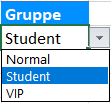
Select from valid values right away. In certain columns, the template suggests valid values. For example? The Group column in the People + Check-in sheet. Look for the gray box with the downward arrow. A left-click activates a dropdown menu with all price groups from the Services sheet. If you add price groups in the Services sheet, the dropdown menu will update automatically. It's the perfect way to enter current, valid cell values without having to think twice.
Keep a well-organized data shop. Sort your entries before entering data. Ideally, in ascending order by the first column, which is usually the ID column. The advantage: You know which next higher ID is still available and avoid gaps that might stress you out later: "Why is there no person 57? Did I delete them by mistake?!"
💡️ Clearly displaying remaining balances per person
In the Bookings sheet, you list all bookings for a person. In the Remaining Balance/Person and Payment Status columns, you can follow the upward arrow (⬆️) to the first booking. See hardly any arrows? Sort the bookings in ascending order by Person ID to group all bookings for one person together.

When it comes to payment status, the whole person counts. As a rule, your participants pay for all their bookings at once. Under time pressure, it's fiddly to split paid amounts exactly across individual bookings. The good news: You don't have to. Simply enter payments into the first booking for a person. The Payment Status column gives the green light once a person has paid enough in total—that is, for all of their bookings. There is an example in the template: the bookings for person ID 3.
Today's date? Just make a point of it. The fastest way to enter today's date into the Booking Date and Cancellation Date columns in the Bookings sheet? Use the keyboard shortcut CTRL + . (period).
Where you hit cell limits
As you can see, an Excel template makes your conference management easier. Within certain limits. Knowing these limits is crucial for your conference's success. Carefully weigh the advantages against the disadvantages of Excel for your participant, payment, and abstract management. Again, one by one:
Participant management with the handbrake on
When managing your participants, you process data as if the handbrake were on.
- High-converting service packages. A multi-day ticket? Including or excluding hotel booking? Pre-bundled offer packages are attractive and convenient for participants. But not for you! Because the template cannot process your services when grouped. You either have to create every variation as a separate service, or book every single service per person. Pretty restrictive, isn't it?
- Swift check-ins. Real time-savers: On-site printing of replacement tickets, digital proof, and convenient QR code scans at self-service stations. While you can manually record attendance with the template, is that really a convincing record of collected continuing education credits (CME points)?
- Automatic data entry via form. Even with triple-digit participant numbers, you have to type everything into the template yourself!
Payment management outside the international arena
When it comes to managing payments, you won't make a good impression on the international stage.
- Modern payment methods like credit cards. International conference participants, in particular, rely on these. The template does not distinguish between payment methods, nor does it exchange payment data with payment service providers. So, your offer is: credit cards are out, cash only?
- Cross-person group bookings. If the group's contact person pays, you can enter this in the template. However, at check-in, you will see outstanding payments for all other group members unless you manually distribute the payment across all of them.
- Automatic reconciliation of bank statements with your participants' open invoices. Because there is no room for external payment data in the template.
- Automatic "proof of status as a foreign entrepreneur" for the reverse charge procedure. You are responsible for checking the conditions for reverse charge VAT for international conference participants.
- Automatic voucher limits. Are vouchers only valid for a certain participant group for a limited time? And can they be redeemed a maximum of twice? In the template, you can see how often and by whom a voucher was redeemed, but you have to watch for discrepancies yourself.
Abstract management without rhyme or reason
When managing abstracts, you get lost in a mess of files and email threads.
- Reliable reminder emails. The template highlights overdue authors and reviewers for you. You are responsible for sending timely reminders, as the template does not send anything automatically.
- Consistent abstract format. Abstracts arrive in your inbox. You requested: a standardized format. You receive: a format salad. "PowerPoint presentations in PPTX, exotic ODS text documents, LibreOffice vintage, garnished with a hint of DOC (late harvest)." Sounds tastier than it is. So, you'll have to cook up that standardized format yourself with compatible file extensions.
- Scientific peer review. There is no room in the template for peer review according to strict scientific standards. You can assign exactly one reviewer to each contribution and record the program committee's decision. This leaves a lot of work for you: anonymizing contributions and assigning them to the right subject-matter experts, anonymizing reviews and providing them to authors, and repeating the process with revised contributions. It’s a long road to the final acceptance or rejection of every paper.
- Ready-made conference program at the push of a button. You want to present an attractive conference program to your attendees with clear times, planned in a humanly possible way—without double-booking locations or people. Even with just two rooms and a few authors with multiple contributions, your program planning becomes a balancing act: Which speaker can spontaneously take over a session? Just as you solve the scheduling puzzle, the next person cancels. The template is of little help here.
Data storage in solitary confinement
When it comes to data storage, Excel sentences you to solitary confinement. Want to let your human and technical cell neighbors out? The spreadsheet tyrant says no. In return, it grants you the freedom to enter invalid and incomplete data.
- Data-efficient team access. Your team and partner organizations only need to process certain data? In Excel, you solve this with customized file copies. But if change conflicts break out between you and your cell neighbors, you have to resolve them on your own. Or you could move into the open-plan cloud cell. Here is what your data protection officer says about sensitive participant data on foreign servers: "Nope."
- Planning advantages through data analysis. Every process you record in the template adds to your data treasure. Like any other treasure, you have to dig it up first. Creating a chart from a table in Excel is quick. But what about your revenue per service? Where do most participants come from? More interesting, but demanding: building reports and visualizations across multiple worksheets.
- Automatic data exchange. Your conference benefits from other software: accounting tools, payment services, event apps, CRM systems, and more. This works best when data exchange is fast and automatic. The template doesn't talk to your software providers. So, you export your conference data. Over and over again. Hopefully with the right filters. This eats up your valuable planning time.
- Guaranteed valid data. The template prevents you from assigning an ID more than once, for example, and only allows IDs of registered persons for bookings and submissions. At least there's that. However, you could inadvertently skip IDs when adding new rows. In the middle of planning stress, you might wonder: "Why is there no person with ID 57? Did I delete it by mistake? Is there still a 57 in older versions of the file? Are there any bookings, submissions, or reviews from person 57? Probably not. Lucky me." Not a fun way to spend your time.
💡️ Before your conference dies of "Excel cell death," use conference software!
You know your conference best. Is the template becoming your downfall? Are you meeting the expectations of your attendees? Before your conference falls victim to "Excel cell death," consider allocating your budget to specialized conference management software. Professionalize your processes—from planning and invitations to on-site check-in.
Discover conference software »
Is your budget a bit tight? Here is how to finance your conference software:
- Is it reasonable to increase registration fees?
- Can you offset the software costs with sponsorships?
- Are there budgets you can reallocate based on your priorities? Remind sponsors, colleagues, and partners of your shared goal: a seamless conference experience and the full attention of your attendees.
Download the Excel template for free
Download the Excel tool for your conference management for free now. It is current as of May 16, 2024 (see changelog) and is compatible with Excel 2010, 2013, 2016, 2019, and 365.
Download free Excel template (.xlsx)
This template is for example purposes only. Seek professional advice and adapt the template to your specific requirements. Converia assumes no liability for damages of any kind resulting from the use or non-use of this template. This applies in particular to damages caused by errors, incompleteness, or inaccuracies in the template, the data contained, or the formulas. This template is protected by copyright. Converia reserves the right to change or remove the template at any time.
Changelog
- May 16, 2024: New
Helpsheet added, which leads to this guide. - May 6, 2024: In the
Submissionssheet, all setting fields regarding deadlines have been consolidated above the table columns. This makes the sheet clearer. - April 30, 2024: The column
Redemptions/Bookingin theVoucherssheet has been renamed to simplyRedemptions. The column was already counting voucher redemptions across all bookings. The previous name suggested that a voucher could be redeemed multiple times per booking.
Can I...? Your questions about the template
Is Microsoft Excel really enough office software for planning a conference?
Yes, within certain limits. With triple-digit participant numbers, sophisticated service packages, and group bookings, manual data entry takes too long. Also not automated: modern payment methods and convenient reminder emails to authors and participants. Within the team, consider this: digital collaboration fails if only one person can open the Excel file on a computer at a time. It is also negligent because everyone sees all the data. Keeping customized file copies up-to-date and consistent is error-prone. And in the cloud? Sensitive participant data has no place on American servers! Before your conference dies a "cell death" in Excel, consider using your budget for specialized conference software for a more comfortable check-in experience.
How many participants, bookings, and submissions can I manage with the Excel template?
Die Excel-Tabellenvorlage hat garantiert mehr Zeilen, als Teilnehmer in Ihren Tagungsraum passen. Und genügend Platz für deren Buchungen und Beiträge. Die entscheiden Frage ist: Wie viele schaffen Sie? Da Sie die Daten händisch einpflegen, verlieren Sie ab einer dreistelligen Teilnehmerzahl den Überblick: "Wer hat nochmal Abstract 116 in Sitzung 2 am ersten Tag eingereicht? Person 115? Oder war die 115 Gutachter von Abstract 116? Denn Person 115 hat nur den zweiten Tag gebucht und kann nicht präsentieren." Gerade in den letzten Tagen vor der Tagung verlieren Sie im ID-Fieber wertvolle Planungszeit an Ihre scheinbar günstige Datenhaltung in Excel.
Wie verknüpfe ich Leistungen zu verkaufsstarken Angebotspaketen?
Mit der Vorlage sind Leistungspakete aus Ticket plus Hotelzimmer leider nur für Ihre Teilnehmer bequem. Entweder erfassen Sie jede Einzelleistung im Tabellenblatt Buchungen getrennt. Oder Sie legen die Angebotspakete vorab im Blatt Leistungen als weitere Leistungen an. Berechnen Sie Stückzahl und Preis der Pakete aus Stückzahl und Preis der einzelnen Leistungen. Sie gewähren Nachlass auf den Paketpreis? Multiplizieren Sie die Summe einfach mit dem Rabatt als Faktor. Ein Beispiel: Legen Sie die Leistung AlleTage an. Addieren Sie beispielsweise die Preise von Tag1 und Tag2 gesenkt um zehn Prozent. Stehen die Einzelpreise in den Zellen F13 und F14, geht das so:
=SUMME(F13; F14)*0,9
Für die Stückzahl-Summe nutzen Sie entsprechend nur die SUMME-Formel.
Wie trage ich Gruppenbuchungen in das Excel-Template ein?
Die Vorlage ist auf Einzelbuchungen ausgelegt. Personenübergreifende Buchungen setzen Sie so um: Legen Sie jedes Gruppenmitglied als Person an und hinterlegen Sie für jedes Gruppenmitglied die gleichen Buchungen. Falls nur ein Gruppenmitglied für alle bezahlt: Machen Sie bei den übrigen Gruppenmitgliedern einen Vermerk. Etwa in einer Zusatzspalte Notiz. Beim Check-in prüfen Sie, ob eine Person mit ausstehender Zahlung einer Gruppe angehört.
Unterstützt die Vorlage Rabatte per Gutscheincode?
Ja. Als Prozentsatz vom Nettopreis einer gebuchten Leistung. Im Tabellenblatt Gutscheine hinterlegen Sie Gutscheincodes. Nach Prozentwert, für Gruppen oder Einzelpersonen. Wie Sie möchten. Im Tabellenblatt Buchungen wählen Sie den einzulösenden Code in der Spalte Gutscheincode im Dropdown-Menü der Zelle aus. In der Spalte Rabattiert erscheint der gesenkte Nettopreis.
Wie kann ich Buchungen stornieren? Wie lege ich die Stornogebühr fest?
Im Tabellenblatt Buchungen tragen Sie für stornierte Buchungen in der Spalte Storniert einfach Ja ein. Oder wählen den Begriff aus dem Dropdown-Menü der Zelle. Im Feld darüber tragen Sie die gewünschte Stornogebühr als Prozentsatz ein. Für stornierte Leistungen verrechnet Excel geleistete Zahlungen mit dem Bruttopreis abzüglich dieser Stornogebühr.
Wie verkaufe ich nicht mehr Tickets als vorhanden? Wie vermeide ich Überbuchungen?
Im Tabellenblatt Buchungen erkennen Sie an der Spalte Verfügbarkeit sofort, wenn Sie zu viele Tickets und Tagungsband-Exemplare buchen. Solange Sie im Tabellenblatt Leistungen die Stückzahlen aktuell halten, sind Sie vor Überbuchungen gefeit.
Wie hinterlege ich Personen als Referenten (Speaker) oder Vorsitzenden (Chair)?
Eine Person im Blatt Personen + Check-in können Sie derzeit im Blatt Beiträge als Einreicher oder Gutachter einteilen. Sind Ihre Einreicher gleichzeitig Referenten (Speaker) und Gutachter immer Vorsitzende (Chairs)? Dann kennzeichnen Einreicher-ID und Gutachter-ID die Personen schon. Falls nicht, ergänzen Sie fünf Spalten im Blatt Beiträge rechts der Spalte Gutachter-Ort. Benennen Sie die Spalten entsprechend um: Referent-ID, Referent-Name usw. Kopieren Sie die Zellen der Gutachter-Spalten in die neuen Spalten für Referenten. Und ersetzen Sie in den Formeln Gutachter durch Referent. Und die Zahl 11 durch 10. Denn Referent ist um einen Buchstaben kürzer. Und noch einmal all das für Vorsitzender. Hier sogar mit 13.
Wie sehe ich alle Referenten (Speakers) und Vorsitzenden (Chairs) einer Sitzung?
Haben Sie die beiden Teilnehmerrollen schon nachgerüstet? Falls nicht, springen Sie zunächst zur Vorgängerfrage zurück. Jetzt erweitern Sie die Vorlage. Im Blatt Sitzungen ergänzen Sie rechts die Spalte Referenten. In eine leere Zelle der Spalte kopieren Sie die Formel:
=TEXTVERKETTEN("; "; WAHR; WENN(Tab_Beiträge[Sitzung-ID]=[@ID]; Tab_Beiträge[Referent-ID]; ""))
Excel überträgt Ihre Formel für Sie auf alle anderen Zeilen der Tabellenspalte. Und gibt Ihnen die Person-IDs aller Referenten je Sitzung aus. Für Vorsitzende (Chairs) und andere Teilnehmerrollen gehen Sie dementsprechend vor.
Erscheint #WERT!, nutzen Sie Excel 2019 oder älter. Schließen Sie die Formeleingabe dann mit STRG + UMSCHALT + EINGABE ab. Das nennt man Array-Formel. Excel verarbeitet die Zellen jetzt Zeile um Zeile. Und spuckt das Ergebnis in genau einer Zelle je Zeile aus. Für eine Zelle bietet Ihre Tabelle genug Platz. Das Ergebnis erscheint.
Wie stelle ich die Beiträge zu einem Programmplan zusammen?
In der Vorlage können Sie Beiträge nur inhaltlich mit Themen und Sitzungen verknüpfen. Einen einfachen Programmplan erreichen Sie auf eigene Faust so: Ergänzen Sie zwei Spalten Start und Ende im Blatt Sitzungen. Wählen Sie als Zellformat der Spalten aus der Kategorie Benutzerdefiniert das Format TT.MM.JJJJ hh:mm. So sehen Sie Datum und Uhrzeit auf einen Blick. Tragen Sie jetzt Zeitpunkte ein. Beginnen Sie mit dem Datum und hängen Sie die Uhrzeit nach einem Leerzeichen an, z. B. 01.02.2024 15:30.
Sinnvoll ist, die Startzeiten im Blatt Beiträge zum Beispiel rechts der Spalte Ort anzuzeigen. Erstellen Sie eine neue Spalte Start. Kopieren Sie die Formel der Spalte Ort in die erste Zeile. Ersetzen Sie in der Formel jedes Ort mit Start. Dann schlägt Ihnen Excel die jeweilige Startzeit nach.
Ihr Planungsrisiko: Doppelbelegungen von Orten und Personen. Erst recht bei hektischen Umstellungen kurz vor Tagungsbeginn. Mit bedingten Formatierungen können Sie betroffene Zellen rot einfärben: Ist eine Einreicher-ID zwei oder mehr Sitzungen zugeordnet, die sich zeitlich überlappen? Sind zwei oder mehr Sitzungen mit zeitlicher Überschneidung mit demselben Ort verknüpft? Die Formel dafür zu schreiben? Kniffelig.
Ebenso die grafische Alternative: Eine Programmansicht als Spaltendiagramm: Einmal jede Spalte als Ort, einmal als Person. Überlagern sich Spalten, haben Sie Orte und Personen zu oft eingeteilt. Dafür ist die Tabelle mit Sitzungsdaten mit ihrem aktuellen Aufbau jedoch nicht geeignet. Das Tabellenoriginal sollten Sie nicht umbauen. Und eine Tabellenkopie ist nach kurzer Zeit veraltet. Ohne automatisierte Datenverarbeitung z. B. mit Excel Power Query finden Sie zu keiner alltagstauglichen Lösung.
Kann ich Stornogebühren gestaffelt nach dem Stornierungszeitraum einstellen?
Derzeit nicht, um die Vorlage einfach zu halten. Sie trauen sich den Eingriff zu? Rüsten Sie zeitabhängig gestaffelte Stornosätze selbst nach. Zum Beispiel so: Im Tabellenblatt Buchungen kopieren Sie L10 in L9 und ändern Sie den Text zu Storniert ab. Formatieren Sie den Zellbereich M9:N10 mit der Zellenformatvorlage Eingabe. Ergänzen Sie in N9 das Stichdatum im TT-MM-JJJJ-Format, darunter in N10 den erhöhten Prozentsatz ab dem Stichtag. Ergänzen Sie rechts der Spalte Stornotag die Spalte Stornogebühr. Klicken Sie auf die Box mit Formatpinsel rechts oben an der neuen Spalte. Klicken Sie im Popup auf Formatierung löschen. Tragen Sie in die erste Zelle die Formel
=WENN(ODER( ISTLEER([@Storniert]); ISTLEER([@Stornotag])); ""; WENN([@Stornotag] < $N$9; $M$10; $N$10))
ein. Excel überträgt die Formel automatisch auf die übrigen Zellen der Spalte. In einer Zelle der Spalte Restbetrag/Buchung ersetzen Sie die Bedingung [@Storniert] = "Ja" mit NICHT([@Stornogebühr] = ""). Und den Zellbezug $M$10 mit [@Stornogebühr], also dem Wert der neuen Spalte in derselben Zeile.
Blockiert Excel die Eingabe, hat es doch die Datenüberprüfung der Spalte Stornotag in die neue Spalte übernommen. So entfernen Sie die Datenvalidierung: Neue Spalte markieren und im Reiter Daten, Bereich Datentools, auf Datenüberprüfung klicken. Im Dialogfenster links unten auf Alle löschen, dann auf OK klicken. Tragen Sie Formel erneut in eine Zeile ein. Excel kopiert sie wieder in die übrigen Zeilen. Und zeigt Ihnen jetzt den Prozentsatz nur für stornierte Buchungen mit bekanntem Stornodatum.
Übrigens: Weitere Staffelungen gelingen Ihnen je nach Excel-Version mit verschachtelten WENN-Formeln oder mit der eleganteren WENNS-Formel.
Ich habe eine andere Frage zur Excel-Vorlage.
Jede Tagung hat ihre Besonderheiten. Oder hat sich der Fehlerfuchs zum Formelfuchs gesellt? Ihre Fragen und Hinweise zur Vorlage senden Sie uns gerne per E-Mail: